I once pushed a real API key to a public GitHub repo. It was in a “temporary” config that I hadn’t touched in a while. Thankfully, GitHub’s secret scanning emailed me, and nothing bad came of it. This problem is becoming more relevant in recent years with AI skills requiring machine-wide configs for external access to MCPs and APIs, which would otherwise end up in regular rc dotfiles. That scare forced me to clean up and rethink how I store secrets on my Mac, and I’ve been running the same setup since: Keychain for machine-level secrets, the 1Password CLI for anything a project needs, and direnv to load them automatically.
Here’s how you can set it up too.
Why not just use .env files?
Before the cleanup, my secrets lived wherever was convenient. A .env file in every project, and a block of export lines in .zshrc that followed me into every shell, related project or not. Each file was one wrong git add away from being public.
Having a .env file also complicates workflows involving git worktrees, which means extra scripting when preparing your directory for work. This has become more relevant to me when running parallel AI coding sessions – I use git worktrees to prevent code clashing between sessions.
I’m in good company, too. GitHub detected more than 39 million leaked secrets across its repositories in 2024 alone – over 100,000 a day, and that’s just the ones its scanner recognizes.
So the leaked key wasn’t bad luck. A secret that sits in plaintext for months will eventually catch a mistake. The fix is to sort your secrets by how they’re used, and give each kind a proper home.
What goes in Keychain?
Your Mac already ships with an encrypted secret store, and most of us never touch it outside of Safari passwords. The security command talks to it directly:
security add-generic-password -a "$USER" -s "openai-api-key" -w
security find-generic-password -a "$USER" -s "openai-api-key" -w
That trailing -w with no value is deliberate: security prompts for the secret instead of taking it as an argument, so the key never lands in your shell history – Apple’s own usage text calls inlining the password insecure. Add -U if you want the command to update an item that already exists.
I use it for secrets that belong to this machine rather than to a project: a personal GitHub token used by one script, a webhook secret I only need for five minutes of debugging. This emptied out most of the export lines in my .zshrc. That matters double if you keep your dotfiles in a git repo like I do – an exported key in .zshrc is one git push away from leaking the same way my API key did.
If a tool insists on finding its key in the environment, you can still export it from .zshrc – just make Keychain the source instead of pasting the value:
# .zshrc -- safe to commit, the value never appears in the file
export OPENAI_API_KEY=$(security find-generic-password -a "$USER" -s "openai-api-key" -w)
One caveat: this runs on every new shell, and each lookup adds a few dozen milliseconds to your startup. For a key you only need occasionally, wrap it in a function instead, and it gets read only when called:
# .zshrc
openai_key() {
  export OPENAI_API_KEY=$(security find-generic-password -a "$USER" -s "openai-api-key" -w)
}
Keychain is local by design, which is also its limit. Anything another machine or a teammate needs has to live somewhere else.
How do I keep project secrets out of .env files?
This is where the 1Password CLI comes in (brew install --cask 1password-cli, then enable Settings → Developer → “Integrate with 1Password CLI” in the desktop app so op authenticates with Touch ID instead of making you sign in manually). Instead of copying values into a .env file, the file holds op://vault/item/field references, and op run resolves them when the process starts:
DATABASE_URL=op://Dev/postgres-local/connection-string
STRIPE_SECRET_KEY=op://Dev/stripe/secret-key
op run --env-file=.env -- npm start
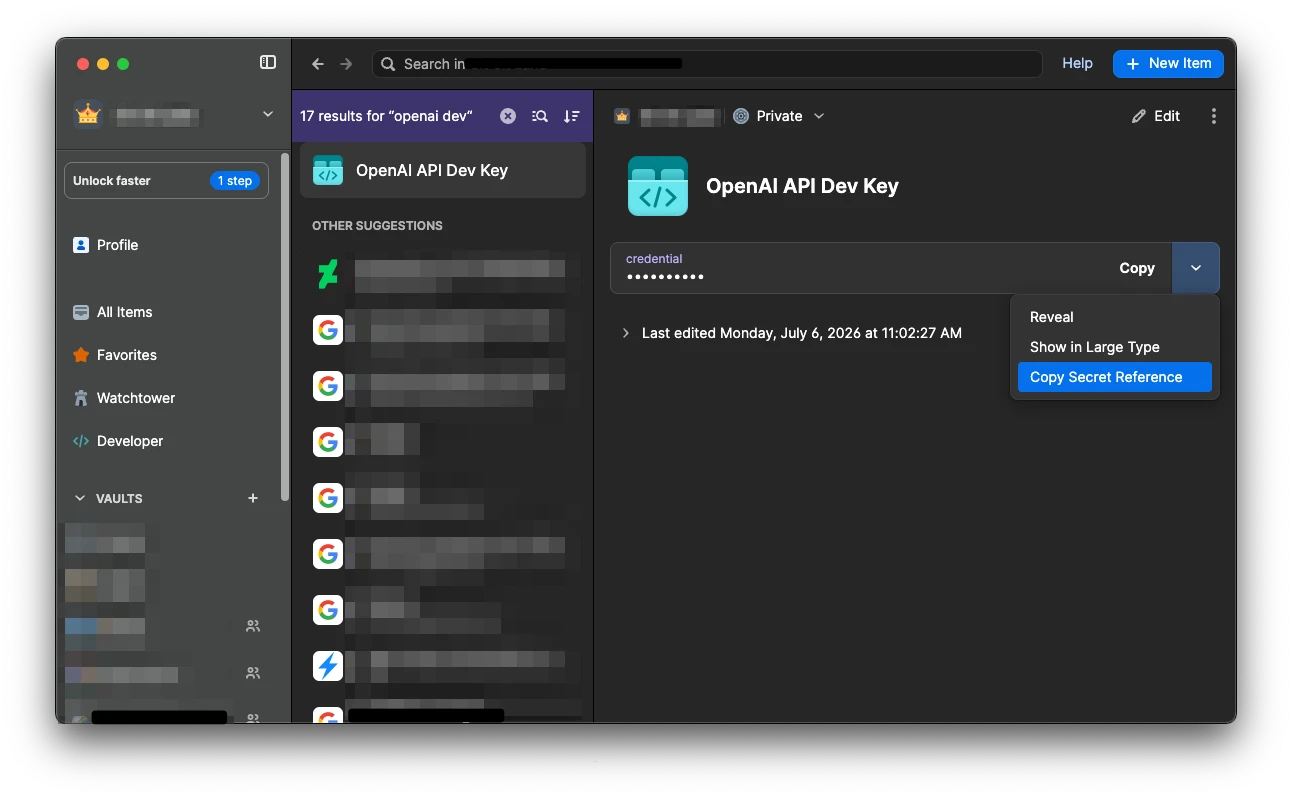
There is nothing in that .env file to steal, so it’s safe to commit. The real values only ever exist in the environment of that one process – and as a bonus, op run masks them if they ever show up in the process output. And since references resolve at runtime, rotating a key in 1Password updates every project and every machine at once – something my scattered .env copies could never do.
How do I load secrets automatically?
The missing piece is not having to remember any of this. direnv (brew install direnv, then hook it into your shell by adding eval "$(direnv hook zsh)" to the end of .zshrc) watches for an .envrc file in each directory: it loads when you cd in and unloads when you cd out.
# .envrc
export DATABASE_URL=$(op read "op://Dev/postgres-local/connection-string")
export STRIPE_SECRET_KEY=$(op read "op://Dev/stripe/secret-key")
Keep .envrc gitignored like you would a .env, but notice what’s inside: references, not values. A teammate clones the repo, runs direnv allow, and needs access to the shared vault – not a Slack message with keys pasted in. As a bonus, your variables stop bleeding into unrelated shells, which is exactly how one of my old .zshrc exports ended up in a project it had nothing to do with.
What about docker compose?
This setup plays nicely with Docker, too. Compose substitutes ${VARIABLES} in docker-compose.yml from the shell environment, so with direnv the values are already loaded by the time you type docker compose up:
services:
  app:
    environment:
      DATABASE_URL: ${DATABASE_URL}
      STRIPE_SECRET_KEY: ${STRIPE_SECRET_KEY}
Two traps to avoid here. First, Compose also reads a .env file in the project directory for the same substitution – including the reference-only one from the previous section. The shell environment takes precedence, so with direnv loaded the real values win; but without direnv (a teammate who skipped setup, a CI runner), Compose silently substitutes the literal op:// strings instead. If that bites you, name the reference file .env.op – Compose ignores it, and op run --env-file=.env.op picks it up all the same. Second, never hardcode values under environment: in docker-compose.yml itself; that file is committed, which puts you right back where I started.
If you’d rather not export variables at all, wrap the command instead, and the references get resolved just for that one process:
op run --env-file=.env -- docker compose up
What if I slip up anyway?
Mistakes still happen. A config file keeps a real key as a fallback default – sound familiar? I run gitleaks (brew install gitleaks) as a pre-commit hook, so a commit containing anything key-shaped never leaves my machine:
gitleaks git --pre-commit --staged --redact -v
(If you’ve seen gitleaks protect --staged in older guides: it still works, but it’s been deprecated since v8.19.0 in favor of the git subcommand.)
It has caught exactly one real secret for me. Still, one more than zero.
If a secret does make it into git history, rotate it. Optionally, you can rewrite history with git filter-repo to scrub it – but treat that as cleanup, not containment: on GitHub, the old commits can live on in forks and cached views long after the rewrite.
The routine
A new project now starts with an .envrc full of op read calls, a committed .env.example showing which references it needs, and gitleaks on every commit. One-off scripts on my own machine get Keychain. The rule behind all of it is simple: a secret never gets typed into a plaintext file, and everything else follows from that.
Give this a go, and let me know if you have a way to improve this workflow!